How can we help?
Popular searches: KB Main Page, AI Chat, Widgets
Sharepoint – Sharing a folder (outside the organization)
Sometimes you may need to share a folder from sharepoint with someone outside of our firm. The most common examples are sharing documents with an opposing attorney as part of discovery. Below are the instructions. Please be aware that the other attorney will be able to see the name of the folder and will continue to have access to that folder unless you set an expiration date. WORD VERSION OF THESE INSTRUCTIONS: sharing a sharepoint folder
- Right click the folder or document you plan to share.
- Click on One Drive
- Click Share
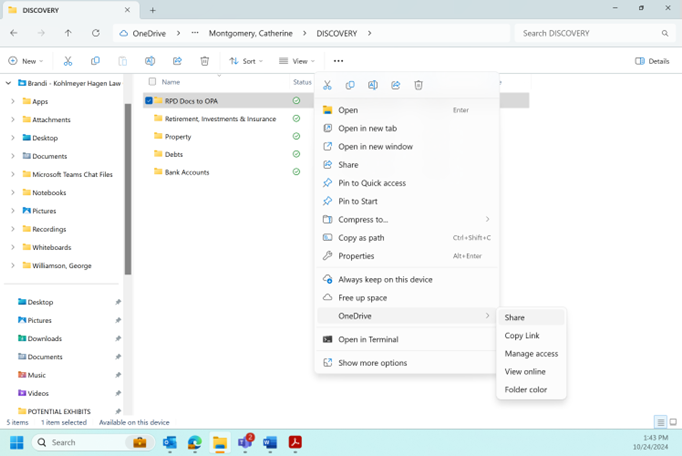
- A new box will pop up.
- Type in the email address you want to send it to.
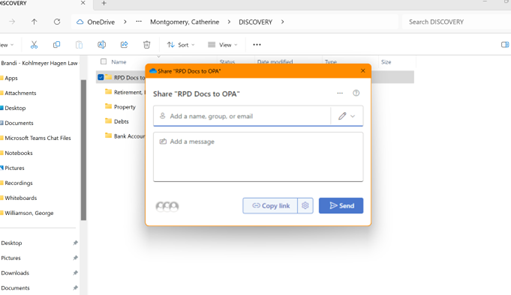
- Once you hit enter and then you’ll see this (below)
- Click Continue
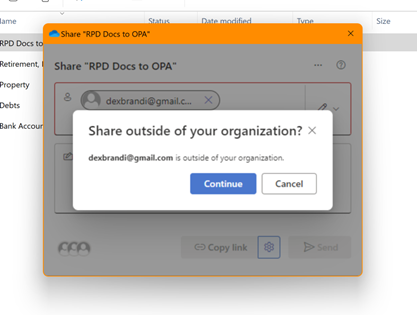
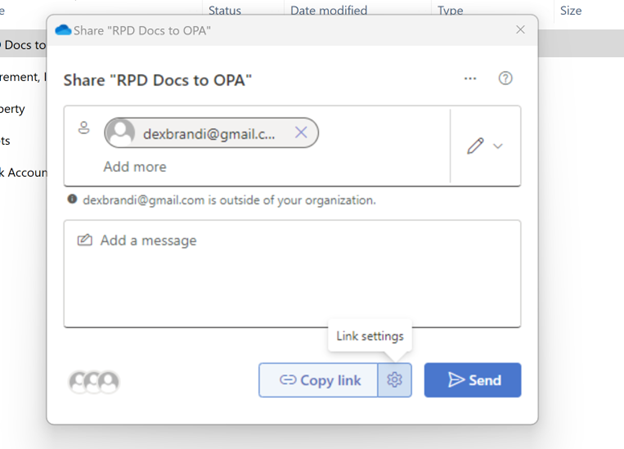
- You’ll then be back on this screen.
- Click on the little gear/settings thing next to copy link
- Select “People you Choose”
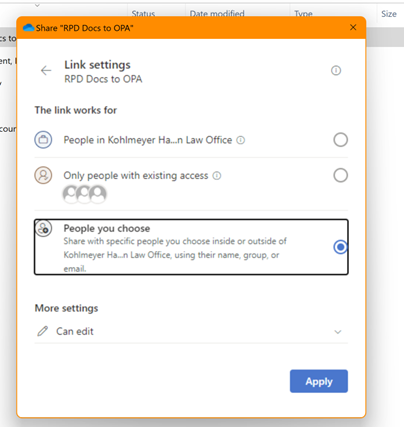
- Under more settings, click the arrow and change it from “Can Edit” to “Can View”
- Select Apply
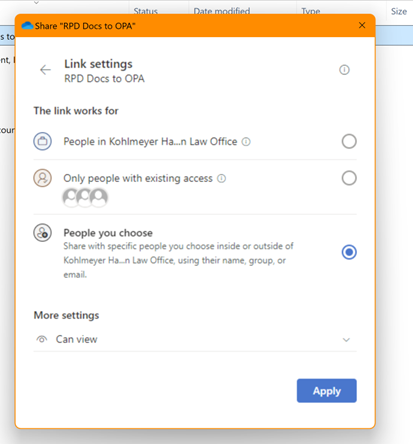
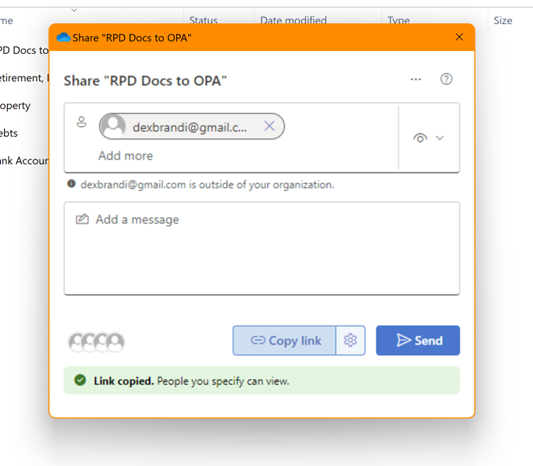
- You should now be back at this screen.
- Click on Copy Link
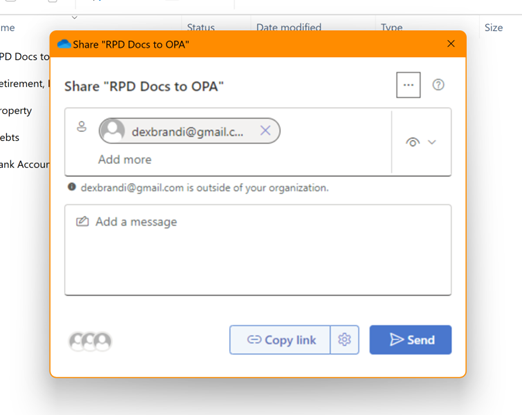
- You should get a new message on the screen saying the link has been copied
- Go into your outlook
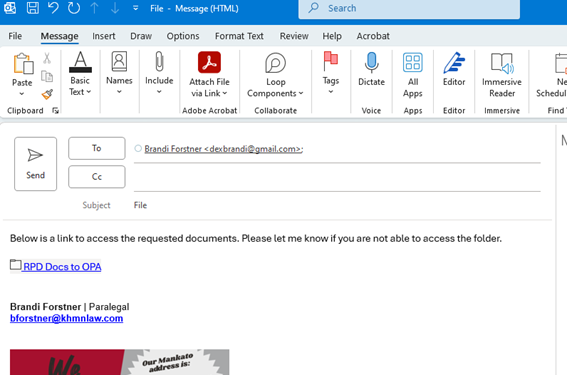
- Type in the email address of who you are sending it to.
- Paste (Ctl+V) in the body of the email to paste the link.
- It should now look like this, specifically, the link should be BLUE.
- Hit Send
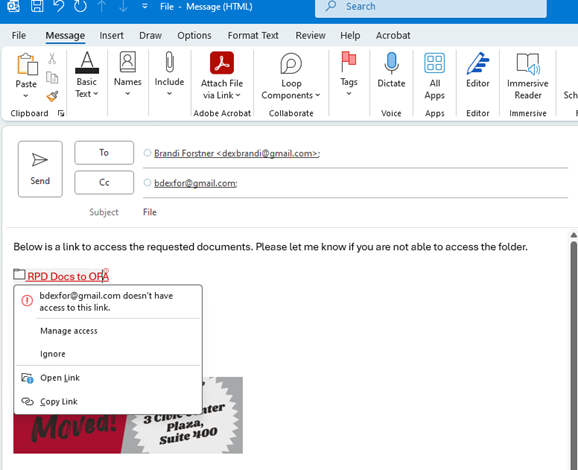
- If you type in an email that you didn’t include in the first part of these instructions, the link will be RED and if you hover over the link, it will tell you which email address is not allowed access.
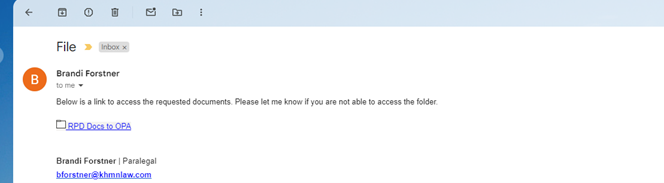
What the recipient will see
- When they open the email they received, it will look exactly like it looked for you.
- When they click on the link for the folder, they will get a message about needing a verification code
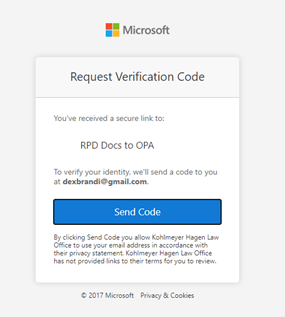
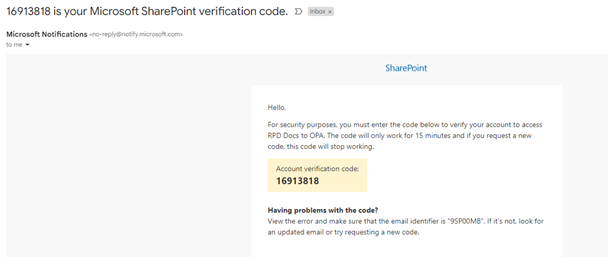
- They will need to hit “Send Code” and then go back to their inbox for a new email with the code

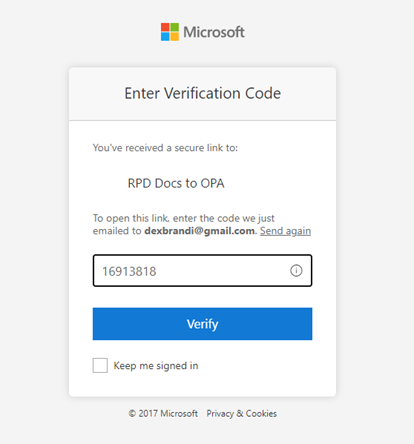
- Once they have the verification code, they’ll go back to this screen, enter it, and click verify
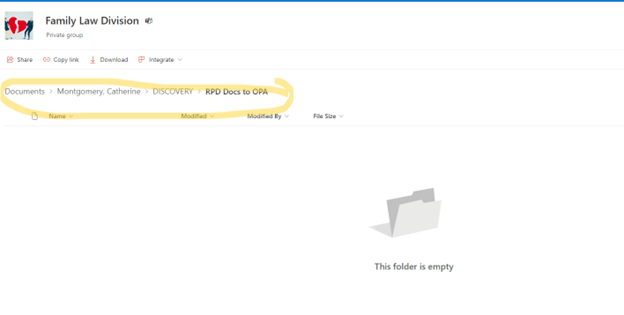
- Then they’ll have access to the folder and the docs in it (this folder is empty). PLEASE NOTE – they will be able to see what the folders are titled (highlighted below) so make sure none of your folders are titled anything unprofessional (like Stupid Docs to that Stupid Opposing Attorney)