Popular searches: KB Main Page, AI Chat, Widgets
Adobe – Reducing the Size of a PDF
Reduce the size of a PDF:
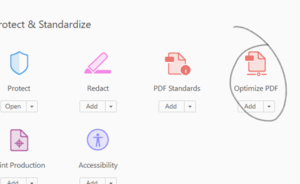
Email and EFS have limits on the size of documents they will take. To reduce a file’s size, go to “Tools,” scroll down, and choose “Optimize PDF.”
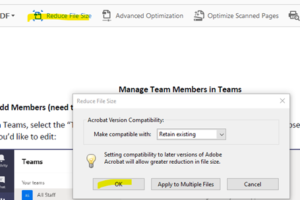
From the tool bar that appears, choose “Reduce File Size” and click “OK.”
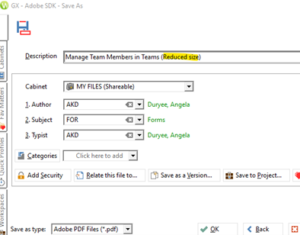
A Sharepoint saving screen will appear. Rename and indicate that the new file is reduced in size.
The file will automatically be reduced. To see the size, go to File>Properties, and find the file size under the description tab. Here is the size of the original:
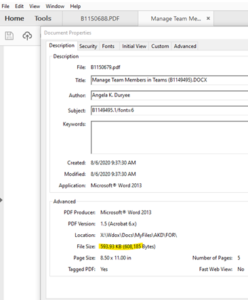
Here is the reduced size:
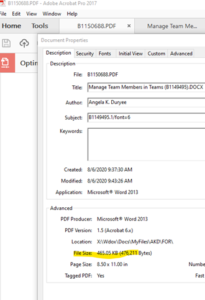
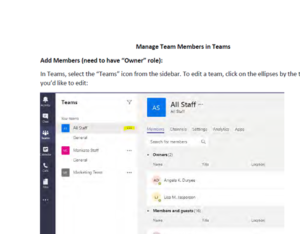
Reducing the size significantly impacts the quality of images, as shown below. This function is best for text only.
Splitting up PDFs:
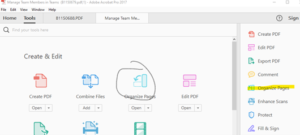
To maintain quality images, it is possible to split PDFs into multiple files based on number of pages, file size, or by bookmarks. Go to the “Tools” and choose “Organize Pages.”
Then, choose “Split” from the toolbar.
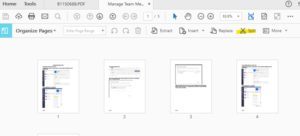
Then, choose the way you’d like to split the pages:
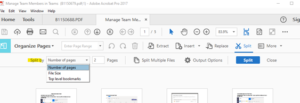
Then, select the parameters into which you’d like to split the file and choose split. EFS docs have to be 25 mb or less. Envelopes need to be 35 mb or less.
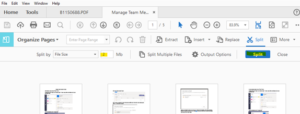
Adobe will automatically create multiple files. Click “OK” on the pop-up:
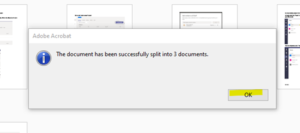
In Sharepoint, the files will be labeled by their parts.